Different icon sizes
Automatic detection evaluates visible regions independently, so one large illustration can sit beside several small UI icons.
An icon sheet combines several icons in one image. Split the artwork into separate files for UI work, presentations or developer handoff. Icons may use different sizes, uneven spacing, or overlapping visual margins. Start with automatic detection, review every region, and switch only the crowded or missed icons to precise manual selection.
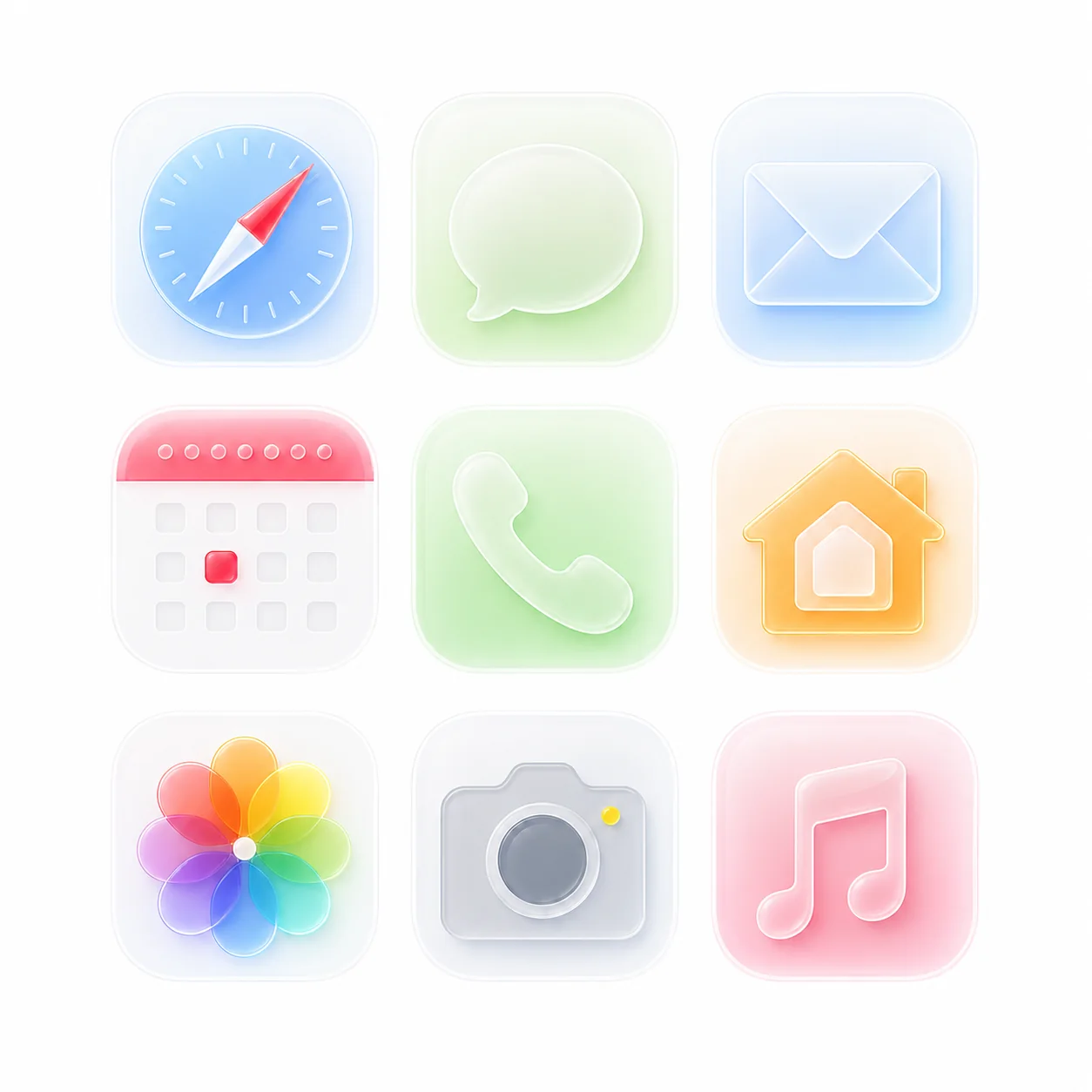
Automatic detection evaluates visible regions independently, so one large illustration can sit beside several small UI icons.
Rows and columns do not need matching gaps. Review close neighbors because shadows or detached details can bridge two regions.
When two icons touch or one icon contains detached parts, draw an exact box instead of forcing a fixed-grid crop.
Best when every icon has a clear gap and the background is white, black, or another flat color.
Check false detections, neighboring fragments, and small parts before selecting the final result set.
Draw exact regions for exceptions while keeping the automatically detected icons that are already correct.
Sign in to process 3 images per day, including examples. Free PNG exports have a maximum longest edge of 512px. Eligible accounts in the current trial receive 10 individual PNG icons per UTC day and one complete image as a PNG ZIP per UTC calendar month. The ZIP allowance is separate from individual PNG downloads. Other free accounts receive one PNG sample per image; check the allowance shown after sign-in.
The $1.99 24-hour pass includes unlimited image processing and PNG, WebP, SVG, ZIP, original-size and multi-size exports for 24 continuous hours from completed payment. One-time payment. No auto-renewal. The free allowance resumes at expiry. Compare the pass, Pro and Lifetime.